
Beginner Friendly Authentication UI Project
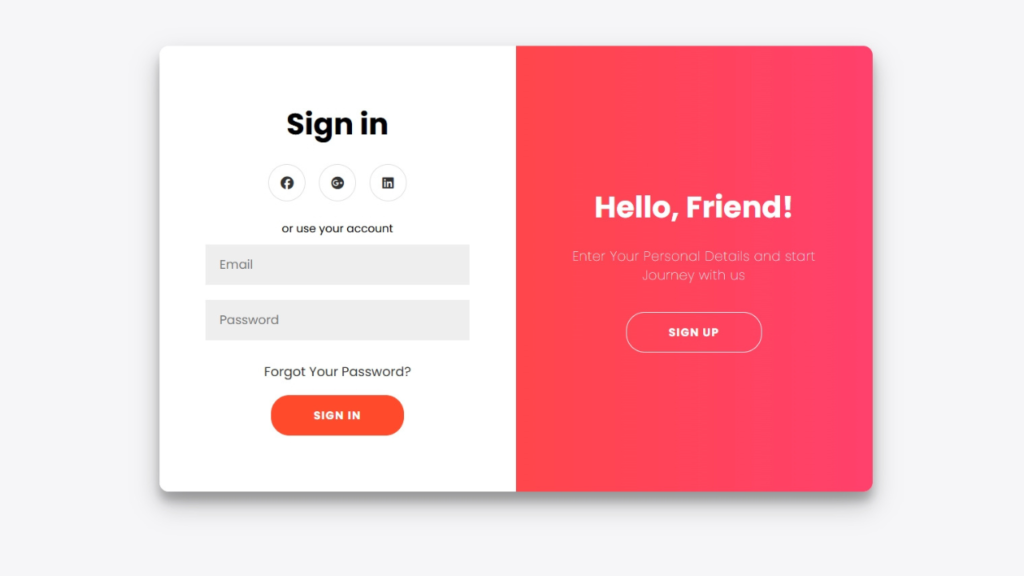
A Login and Signup Form is a core feature of most modern websites and web applications. In this tutorial, you will learn how to create a responsive and interactive Login & Signup form using HTML, CSS, and JavaScript, where users can easily switch between login and registration forms.
This project is perfect for beginners who want to understand form structure, UI interaction, and basic JavaScript logic.

Tools & Resources That Support My Web Development Work
Discover the exact hardware and services I use daily — from laptops and keyboards to hosting and domains.
1. Video Tutorial – Login & Signup Form
If you prefer learning visually, you can follow the step-by-step video tutorial where the complete Login & Signup form is built using HTML, CSS, and JavaScript.
In this video, you will learn:
HTML structure for login and signup forms
CSS styling and smooth transitions
JavaScript logic for switching between forms
2. HTML Structure – Login & Signup Layout
The HTML structure includes:
Login form section
Signup (registration) form section
Input fields and submit buttons
Clean and semantic HTML keeps the code readable and easy to maintain.
👇 Place your complete HTML code below this section.
					<!doctype html>
<html lang="en">
    <head>
        <meta charset="UTF-8" />
        <meta name="viewport" content="width=device-width, initial-scale=1.0" />
        <title>Login And Signup form | CodeByGaurav</title>
        <link rel="stylesheet" href="style.css" />
        <link
            rel="stylesheet"
            href="https://cdnjs.cloudflare.com/ajax/libs/font-awesome/7.0.1/css/all.min.css"
        />
    </head>
    <body>
        <!-- main Container -->
        <div class="container" id="container">
            <!-- sign-up container -->
            <div class="form-container sign-up-container">
                <form action="">
                    <h1>Create Account</h1>
                    <div class="social-container">
                        <a href="#" class="social"
                            ><i class="fa-brands fa-facebook"></i
                        ></a>
                        <a href="#" class="social"
                            ><i class="fa-brands fa-google-plus"></i
                        ></a>
                        <a href="#" class="social"
                            ><i class="fa-brands fa-linkedin"></i
                        ></a>
                    </div>
                    <span>or use your email for registration</span>
                    <input type="text" placeholder="Name" />
                    <input type="email" placeholder="Email" />
                    <input type="password" placeholder="Password" />
                    <button>Sign Up</button>
                </form>
            </div>

            <!-- Sign in container -->
            <div class="form-container sign-in-container">
                <form action="">
                    <h1>Sign in</h1>
                    <div class="social-container">
                        <a href="#" class="social"
                            ><i class="fa-brands fa-facebook"></i
                        ></a>
                        <a href="#" class="social"
                            ><i class="fa-brands fa-google-plus"></i
                        ></a>
                        <a href="#" class="social"
                            ><i class="fa-brands fa-linkedin"></i
                        ></a>
                    </div>
                    <span>or use your account</span>
                    <input type="email" placeholder="Email" />
                    <input type="password" placeholder="Password" />
                    <a href="#">Forgot Your Password?</a>
                    <button>Sign In</button>
                </form>
            </div>

            <!-- overly-container -->
            <div class="overlay-container">
                <div class="overlay">
                    <div class="overlay-panel overlay-left">
                        <h1>Welcome Back</h1>
                        <p>
                            To keep connected with us please login with your
                            personal info
                        </p>
                        <button class="ghost" id="signIn">Sign In</button>
                    </div>

                    <div class="overlay-panel overlay-right">
                        <h1>Hello, Friend!</h1>
                        <p>
                            Enter Your Personal Details and start Journey with us
                        </p>
                        <button class="ghost" id="signUp">Sign Up</button>
                    </div>
                </div>
            </div>
        </div>
    </body>
    <script src="script.js"></script>
</html>
3. CSS Styling – Form Design & Animation
CSS is used to:
Style inputs and buttons
Create smooth animations between forms
Make the layout fully responsive
Improve overall UI/UX
Transitions and animations make the form more engaging and professional.
👇 Add your complete CSS code here.
					@import url("https://fonts.googleapis.com/css2?family=Poppins:ital,wght@0,100;0,200;0,300;0,400;0,500;0,600;0,700;0,800;0,900;1,100;1,200;1,300;1,400;1,500;1,600;1,700;1,800;1,900&display=swap");

* {
    padding: 0;
    margin: 0;
    box-sizing: border-box;
    font-family: "Poppins", sans-serif;
}

body {
    background: #f6f5f7;
    display: flex;
    justify-content: center;
    align-items: center;
    flex-direction: column;
    height: 100vh;
    margin: -20px 0 50px;
}

h1 {
    font-weight: bold;
    margin: 0;
}

h2 {
    text-align: center;
}

p {
    font-size: 14px;
    font-weight: 100;
    line-height: 20px;
    letter-spacing: 0.5px;
    margin: 20px 0 30px;
}

span {
    font-size: 12px;
}

a {
    color: #333;
    font-size: 14px;
    text-decoration: none;
    margin: 15px 0;
}

button {
    border-radius: 20px;
    border: 1px solid #ff4b2b;
    background: #ff4b2b;
    color: #fff;
    font-size: 12px;
    font-weight: bold;
    padding: 12px 45px;
    letter-spacing: 1px;
    text-transform: uppercase;
    cursor: pointer;
    transition: transform 80ms ease-in;
}

button:active {
    transform: scale(0.95);
}

button:focus {
    outline: none;
}
button.ghost {
    background: transparent;
    border-color: #fff;
}

form {
    background: #fff;
    display: flex;
    justify-content: center;
    align-items: center;
    flex-direction: column;
    padding: 0 50px;
    height: 100%;
    text-align: center;
}
input {
    background: #eee;
    border: none;
    padding: 12px 15px;
    margin: 8px 0;
    width: 100%;
}

.container {
    background: #fff;
    border-radius: 10px;
    box-shadow:
        0 14px 28px rgba(0, 0, 0, 0.25),
        0 10px 10px rgba(0, 0, 0, 0.22);
    position: relative;
    overflow: hidden;
    width: 768px;
    min-height: 480px;
}

.form-container {
    position: absolute;
    top: 0;
    height: 100%;
    transition: all 0.6s ease-in-out;
}

.sign-in-container {
    left: 0;
    width: 50%;
    z-index: 2;
}

.container.right-panel-active .sign-in-container {
    transform: translateX(100%);
}

.sign-up-container {
    left: 0;
    width: 50%;
    opacity: 0;
    z-index: 1;
}

.container.right-panel-active .sign-up-container {
    transform: translateX(100%);
    opacity: 1;
    z-index: 5;
    animation: show 0.6s;
}

@keyframes show {
    0%,
    49.99% {
        opacity: 0;
        z-index: 1;
    }

    50%,
    100% {
        opacity: 1;
        z-index: 5;
    }
}

.overlay-container {
    position: absolute;
    top: 0;
    left: 50%;
    width: 50%;
    height: 100%;
    overflow: hidden;
    transition: transform 0.6s ease-in-out;
    z-index: 100;
}

.container.right-panel-active .overlay-container {
    transform: translateX(-100%);
}

.overlay {
    background: #ff416c;
    background: -webkit-linear-gradient(to right, #ff4b2b, #ff416c);
    background: linear-gradient(to right, #ff4b2b, #ff416c);
    background-repeat: no-repeat;
    background-size: cover;
    background-position: 0 0;
    color: #fff;
    position: relative;
    left: -100%;
    height: 100%;
    width: 200%;
    transform: translateX(0);
    transition: transform 0.6s ease-in-out;
}

.container.right-panel-active .overlay{
    transform: translateX(50%);
}

.overlay-panel{
    position: absolute;
    display: flex;
    justify-content: center;
    align-items: center;
    flex-direction: column;
    padding: 0 40px;
    text-align: center;
    top: 0;
    height: 100%;
    width: 50%;
    transform: translateX(0);
    transition: transform 0.6s ease-in-out;
}

.overlay-left{
    transform: translateX(-20%);
}

.container.right-panel-active .overlay-left{
    transform: translateX(0);
}

.overlay-right{
    right: 0;
    transform: translateX(0);
}

.container.right-panel-active .overlay-right{
    transform: translateX(20%);
}

.social-container{
    margin: 20px 0;
}

.social-container a{
    border: 1px solid #ddd;
    border-radius: 50%;
    display: inline-flex;
    justify-content: center;
    align-items: center;
    margin: 0 5px;
    height: 40px;
    width: 40px;
}
4. JavaScript Logic – Form Switching & Interaction
JavaScript handles:
Switching between Login and Signup forms
Button click events
Basic form validation (optional)
This adds interactivity and improves user experience.
👇 Insert your complete JavaScript code here.
					const signInButton = document.getElementById("signIn");
const signUpButton = document.getElementById("signUp");
const container = document.getElementById("container");

signUpButton.addEventListener("click",()=>{
    container.classList.add("right-panel-active")
})
signInButton.addEventListener("click",()=>{
    container.classList.remove("right-panel-active");
})
5. Key Features of This Project
Login & Signup toggle using JavaScript
Clean and modern UI design
Beginner-friendly code structure
Fully responsive layout
Built using HTML, CSS & JavaScript
Conclusion
In this tutorial, you learned how to build a Login and Signup Form using HTML, CSS, and JavaScript. This project is ideal for beginners who want to practice frontend authentication UI and interactive form design.
You can enhance this project by adding:
Password strength checker
Error messages & validations
Backend authentication support
For more frontend projects and tutorials, follow CodeByGaurav 🚀

Nice try, keep it up bro 👍😉!
Thank You so much for support
Nice 🙂 coding
thank u so much