
Introduction :
Navigation menus play a crucial role in any website as they help users easily explore different sections and pages. A well-designed navigation menu not only improves usability but also enhances the overall visual appeal of a website.
In this tutorial, we will create a Glowing Navigation Menu using HTML and CSS. This modern UI design uses glowing hover effects to make the navigation links more interactive and visually engaging.
Glowing effects are widely used in modern websites, especially in tech, gaming, and portfolio designs. These effects make the interface feel dynamic and attractive without requiring complex JavaScript logic.
This project is beginner-friendly and perfect for developers who want to improve their CSS styling skills and learn how to create eye-catching UI components.

Tools & Resources That Support My Web Development Work
Discover the exact hardware and services I use daily — from laptops and keyboards to hosting and domains.
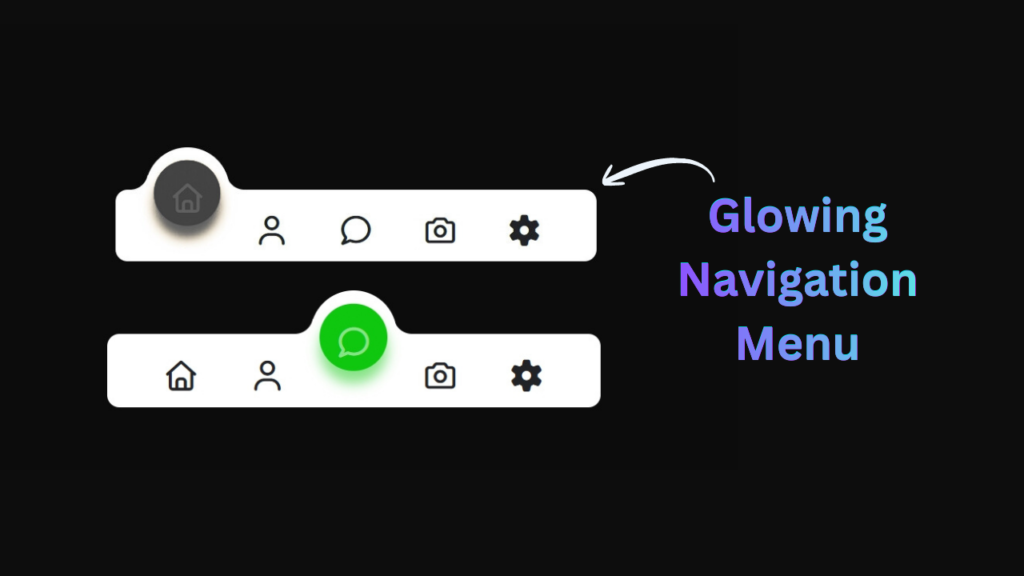
Project Overview :
The goal of this project is to design a stylish navigation menu that includes glowing hover effects on menu items. When users move their cursor over the navigation links, a glowing animation will be triggered.
This project focuses on creating an interactive UI using only HTML and CSS.
The navigation menu will include:
A horizontal navigation bar
Multiple navigation links
Glowing hover effects
Smooth transitions
Modern UI design
On larger screens, the navigation links will be displayed in a row. The glowing effect will highlight each link when hovered, making the interface more engaging.
This project demonstrates how simple CSS techniques can transform basic navigation elements into modern UI components.
Video Tutorial :
You can watch the complete step-by-step tutorial below to understand how to build the glowing navigation menu.
HTML Structure :
The HTML structure defines the layout of the navigation menu. It includes a container that holds multiple navigation links.
Each navigation item is created using anchor tags, which allows users to navigate to different sections or pages of the website.
The structure is kept simple and clean so that the focus remains on styling and hover effects.
The main elements used in this section include:
Navigation container
List of navigation links
Anchor elements for navigation
This structured approach makes it easy to apply CSS styles and create interactive effects.
					<!DOCTYPE html>
<html lang="en">
<head>
    <meta charset="UTF-8">
    <meta name="viewport" content="width=device-width, initial-scale=1.0">
    <title>Glowing Navigation Menu | CodeByGaurav</title>
    <link rel="stylesheet" href="CodeByGaurav.css">
    <link rel="stylesheet" href="https://cdnjs.cloudflare.com/ajax/libs/font-awesome/7.0.1/css/all.min.css">
</head>
<body>
    <div class="navigation">
        <ul>

            <li class="list active" style="--clr:#f44336;">
                <a href="#">
                    <span class="icon">
                        <i class="fa-regular fa-house"></i>
                    </span>
                </a>
            </li>

            <li class="list" style="--clr:#ffa117;">
                <a href="#">
                    <span class="icon">
                       <i class="fa-regular fa-user"></i>
                    </span>
                </a>
            </li>

            <li class="list" style="--clr:#0fc70f;">
                <a href="#">
                    <span class="icon">
                       <i class="fa-regular fa-comment"></i>
                    </span>
                </a>
            </li>

             <li class="list" style="--clr:#2196f3;">
                <a href="#">
                    <span class="icon">
                       <i class="fa-regular fa-camera"></i>
                    </span>
                </a>
            </li>

             <li class="list" style="--clr:#b145e9;">
                <a href="#">
                    <span class="icon">
                        <i class="fa-solid fa-gear"></i>
                    </span>
                </a>
            </li>
            <div class="indicator"></div>
        </ul>
    </div>
</body>
<script src="script.js"></script>
</html>
CSS Styling :
CSS plays a key role in creating the glowing navigation effect. It is used to style the layout, colors, spacing, and animations of the menu.
The glowing effect is achieved using CSS properties such as shadows, transitions, and color effects. These styles create a bright glow around the navigation links when hovered.
Key styling techniques used in this project include:
Background color and layout styling
Text styling and spacing
Glow effects using shadows
Smooth transitions for animations
Hover effects for interaction
These styles help create a modern and visually appealing navigation menu.
					*{
    padding: 0;
    margin: 0;
    box-sizing: border-box;
}

body{
    display: flex;
    justify-content: center;
    align-items: center;
    min-height: 100vh;
    background: #0c0c0c;
}

.navigation{
    position: relative;
    width: 400px;
    height: 60px;
    background: white;
    display: flex;
    justify-content: center;
    align-items: center;
    border-radius: 10px;
}

.navigation ul{
    width: 350px;
    display: flex;
}

.navigation ul li{
    list-style: none;
    position: relative;
    width: 70px;
    height: 60px;
    z-index: 2;
}

.navigation ul li a{
    text-decoration: none;
    color: #555;
    position: relative;
    display: flex;
    justify-content: center;
    align-items: center;
    width: 100%;
    height: 100%;
}

.navigation ul li a .icon{
    position: relative;
    background: #fff;
    display: block;
    width: 55px;
    height: 55px;
    text-align: center;
    line-height: 65px;
    border-radius: 65px;
    color: #222327;
    font-size: 1.5em;
    transition: 0.5s;
    transition-delay: 0s;
}

.indicator{
    position: absolute;
    top: -35px;
    width: 70px;
    height: 70px;
    background: #fff;
    border-radius: 50%;
    z-index: 1;
    transition: 0.5s;
}

.navigation ul li.active a .icon{
    background: var(--clr);
    color: #fff;
    transform: translateY(-27px);
    transition-delay: 0.25s;
}

.navigation ul li a .icon::before{
    content: "";
    position: absolute;
    top: 10px;
    left: 0;
    width: 100%;
    height: 100%;
    background: var(--clr);
    border-radius: 50%;
    filter: blur(5px);
    opacity: 0;
    transition: .5s;
    transition-delay: 0.15s;
}

.navigation ul li.active a .icon::before{
    opacity: 0.5;
    transition-delay: 0.25s;
}

.indicator::before{
    content: "";
    position: absolute;
    top: 5px;
    left: -27.5px;
    width: 30px;
    height: 30px;
    border-radius: 50%;
    box-shadow: 15px 18px #fff;
}

.indicator::after{
    content: "";
    position: absolute;
    top: 5px;
    right: -27.5px;
    height: 30px;
    width: 30px;
    border-radius: 50%;
    box-shadow: -15px 18px #fff;
}

.navigation ul li:nth-child(1).active ~ .indicator{
    transform: translateX(calc(70px * 0));
}

.navigation ul li:nth-child(2).active ~ .indicator{
    transform: translateX(calc(70px * 1));
}
.navigation ul li:nth-child(3).active ~ .indicator{
    transform: translateX(calc(70px * 2));
}
.navigation ul li:nth-child(4).active ~ .indicator{
    transform: translateX(calc(70px * 3));
}
.navigation ul li:nth-child(5).active ~ .indicator{
    transform: translateX(calc(70px * 4));
}
JavaScript Logic :
In this project, JavaScript is used to enhance the interactivity of the glowing navigation menu, especially for mobile devices and dynamic user interactions.
While the glowing effect itself is created using CSS, JavaScript helps in controlling the behavior of the navigation menu on smaller screens. For example, when the screen size is reduced, the navigation links are usually hidden and replaced with a menu toggle button (hamburger icon). JavaScript allows us to show or hide the menu when the user clicks on this button.
The working process is simple and efficient:
First, we select the menu toggle button and navigation links using JavaScript.
Then, we add a click event listener to the toggle button.
When the user clicks the button, a class is added or removed from the navigation menu.
This class controls whether the menu is visible or hidden.
This approach helps create a smooth and responsive user experience without requiring complex logic.
Additionally, JavaScript can also be used to:
Close the menu when a user clicks on a navigation link
Add active link highlighting
Improve accessibility and usability
Even though this project mainly focuses on CSS effects, adding a small amount of JavaScript makes the navigation menu more practical and user-friendly for real-world applications.
					const list = document.querySelectorAll(".list")
const nav = document.querySelector(".navigation");

list.forEach(item => item.addEventListener("click", function(e){

    list.forEach(li => li.classList.remove("active"));
    e.currentTarget.classList.add("active");

}))
You Might Also Like :
If you enjoyed building this project, you may also like these tutorials:
These projects will help you improve your frontend development skills and build real-world UI components.
Features of This Project :
This Glowing Navigation Menu project includes several useful features:
Modern glowing UI design
Smooth hover animations
Beginner-friendly HTML and CSS
Lightweight and fast loading
Easy to integrate into any website
Fully customizable styles
This project is perfect for portfolios, landing pages, and modern websites.
Conclusion :
In this tutorial, we created a Glowing Navigation Menu using HTML and CSS. This project demonstrated how CSS hover effects and styling techniques can be used to create interactive and modern navigation designs.
A well-designed navigation menu improves both usability and visual appeal. You can further customize this project by changing glow colors, adding animations, or making the menu responsive.
Practicing UI projects like this helps developers build strong frontend skills and create visually attractive websites.

Pingback: Password Generator using JavaScript | Create Strong Random Password Generator (HTML CSS JS) - CodeByGaurav