
Introduction :
A navigation bar is one of the most important components of any website. It helps users easily navigate between different pages and sections of a site. A well-designed navbar improves both user experience and website usability.
In this tutorial, we will build a complete responsive navbar with a dropdown menu using HTML, CSS, and JavaScript. The navigation bar will work smoothly on desktop, tablet, and mobile devices.
This project demonstrates important frontend development concepts such as responsive layouts, dropdown menus, hover effects, and mobile navigation toggles. By the end of this tutorial, you will have a fully functional responsive navbar that can be used in portfolios, blogs, and business websites.
Tools & Resources That Support My Web Development Work
Discover the exact hardware and services I use daily — from laptops and keyboards to hosting and domains.
Project Overview :
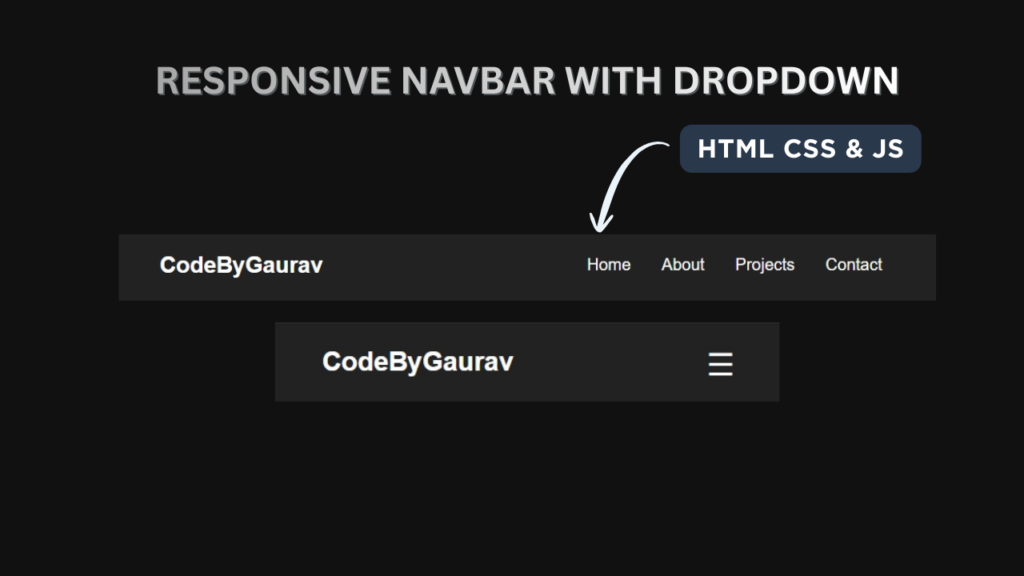
The goal of this project is to design a modern navigation bar that adapts to different screen sizes.
The navbar will include the following features:
Website logo or title
Navigation links
Dropdown menu for sub-items
Mobile hamburger menu
Responsive layout for smaller screens
On large screens, the menu items will appear horizontally. On mobile devices, the navigation menu will collapse into a hamburger menu which can be toggled using JavaScript.
This type of responsive navigation system is widely used in modern web design and is an essential skill for frontend developers.
Video Tutorial :
You can watch the complete step-by-step tutorial in the video below.
HTML Structure :
The first step is creating the navigation structure using HTML. HTML provides the layout for the logo, navigation links, dropdown menu, and hamburger icon.
The navigation bar consists of:
Logo section
Navigation menu
Dropdown menu items
Mobile menu toggle button
HTML Code
<!doctype html>
<html lang="en">
<head>
<meta charset="UTF-8" />
<meta name="viewport" content="width=device-width, initial-scale=1.0" />
<title>Responsive Navbar</title>
<link rel="stylesheet" href="style.css" />
</head>
<body>
<nav class="navbar">
<div class="logo">CodeByGaurav</div>
<ul class="nav-links">
<li><a href="#">Home</a></li>
<li><a href="#">About</a></li>
<li class="dropdown">
<a href="#">Projects</a>
<ul class="dropdown-menu">
<li><a href="#">HTML Projects</a></li>
<li><a href="#">CSS Projects</a></li>
<li><a href="#">JavaScript Projects</a></li>
</ul>
</li>
<li><a href="#">Contact</a></li>
</ul>
<div class="menu-toggle">☰</div>
</nav>
<script src="script.js"></script>
</body>
</html>
CSS Styling :
After creating the HTML structure, we style the navigation bar using CSS. CSS helps us create a clean layout and control how the navigation menu looks on different devices.
Key styling features include:
Horizontal navigation layout
Dropdown menu styling
Hover effects
Responsive mobile menu
Modern UI design
CSS Code
					* {
    margin: 0;
    padding: 0;
    box-sizing: border-box;
    font-family: Arial, sans-serif;
}

body {
    background: #111;
}

.navbar {
    display: flex;
    justify-content: space-between;
    align-items: center;
    padding: 15px 40px;
    background: #222;
    color: white;
}

.logo {
    font-size: 22px;
    font-weight: bold;
}

.nav-links {
    list-style: none;
    display: flex;
}

.nav-links li {
    position: relative;
}

.nav-links a {
    text-decoration: none;
    color: white;
    padding: 10px 15px;
    display: block;
    transition: 0.3s;
}

.nav-links a:hover {
    background: #00c8ff;
    border-radius: 4px;
}

.dropdown-menu {
    display: none;
    position: absolute;
    background: #333;
    top: 40px;
    min-width: 150px;
}

.dropdown-menu li {
    display: block;
}

.dropdown:hover .dropdown-menu {
    display: block;
}

.menu-toggle {
    display: none;
    font-size: 26px;
    cursor: pointer;
}

@media (max-width: 768px) {
    .nav-links {
        display: none;
        flex-direction: column;
        width: 100%;
        background: #222;
        position: absolute;
        top: 60px;
        left: 0;
    }

    .nav-links li {
        text-align: center;
    }

    .menu-toggle {
        display: block;
    }

    .nav-links.active {
        display: flex;
    }
}
JavaScript Logic :
JavaScript is used to control the mobile navigation menu. When the user clicks the hamburger icon, JavaScript toggles the visibility of the navigation links.
This makes the navigation bar fully responsive and interactive.
JavaScript Code
					const toggle = document.querySelector(".menu-toggle");
const navLinks = document.querySelector(".nav-links");

toggle.addEventListener("click", () => {
    navLinks.classList.toggle("active");
});
You Might Also Like :
If you enjoyed building this project, you may also like these tutorials:
These projects will help you improve your frontend development skills and build real-world UI components.
Features of This Project :
This responsive navbar includes several useful features:
Fully responsive navigation bar
Dropdown menu support
Mobile hamburger menu
Smooth hover effects
Beginner-friendly HTML CSS JavaScript code
Clean and modern UI design
This component can easily be integrated into portfolios, blogs, landing pages, and business websites.
Conclusion :
In this tutorial, we built a complete responsive navbar with a dropdown menu using HTML, CSS, and JavaScript. This project demonstrates how responsive layouts and interactive navigation systems are created for modern websites.
A responsive navigation bar improves usability and ensures that users can easily navigate a website on any device. You can further customize this project by adding icons, animations, or multi-level dropdown menus.
Practicing projects like this will help you strengthen your frontend development skills and build a professional web development portfolio.


Pingback: Glowing Navigation Menu using HTML & CSS - CodeByGaurav
Pingback: Password Generation App Using JavaScript - CodeByGaurav