
Beginner Friendly Task Management Project
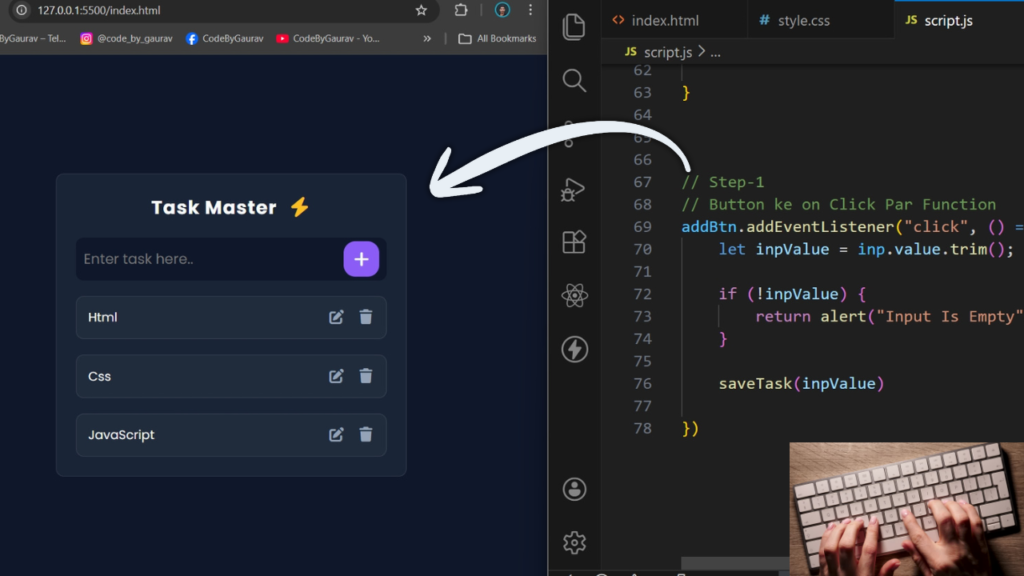
A To-Do App is one of the best beginner projects to learn frontend development. In this tutorial, you will build a simple and interactive To-Do App using HTML, CSS, and JavaScript that helps users add, manage, and organize daily tasks easily.
This project improves your understanding of DOM manipulation, events, and basic logic building in JavaScript.

Tools & Resources That Support My Web Development Work
Discover the exact hardware and services I use daily — from laptops and keyboards to hosting and domains.
1. Video Tutorial – To-Do App Project
If you prefer learning visually, you can follow the complete video tutorial where the To-Do App is created step by step.
In this video, you’ll learn:
HTML structure for the app
Styling the app using CSS
JavaScript logic for task management
2. HTML Structure – To-Do App Layout
The HTML structure defines the layout of the app, including:
Input field for new tasks
Add button
Task list container
Clean and semantic HTML makes the app easier to maintain and understand.
👇 Place your complete HTML code below this section.
					<!DOCTYPE html>
<html lang="en">
<head>
    <meta charset="UTF-8">
    <meta name="viewport" content="width=device-width, initial-scale=1.0">
    <title>To-Do App | CodeByGaurav</title>
    <link rel="stylesheet" href="style.css">
    <link rel="stylesheet" href="https://cdnjs.cloudflare.com/ajax/libs/font-awesome/7.0.1/css/all.min.css">
</head>
<body>
    <div class="container">
        <h2>Task Master <i class="fa-solid fa-bolt"></i></h2>
        <div class="input-wrapper">
            <input id="inp" type="text" placeholder="Enter task here.." autofocus="off">
            <i id="addBtn" class="fa-solid fa-plus"></i>
        </div>

        <ul class="task-list">
            <li>
                <p>Html</p>
                <div class="btns">
                    <i class="fa-solid fa-pen-to-square"></i>
                    <i class="fa-solid fa-trash"></i>
                </div>
            </li>
        </ul>
    </div>
</body>
<script src="script.js"></script>
</html>
3. CSS Styling – To-Do App Design
CSS is used to design the app interface and make it visually appealing. It includes:
Layout styling
Button and input design
Task list styling
Responsive design
CSS helps give the app a clean and modern look.
👇 Add your full CSS code here.
					@import url("https://fonts.googleapis.com/css2?family=Poppins:ital,wght@0,100;0,200;0,300;0,400;0,500;0,600;0,700;0,800;0,900;1,100;1,200;1,300;1,400;1,500;1,600;1,700;1,800;1,900&display=swap");

:root{
   --bg-color: #0f172a;
    --card-bg: rgba(30, 41, 59, 0.7);
    --accent-color: #8b5cf6; /* Electric Purple */
    --accent-glow: rgba(139, 92, 246, 0.5);
    --text-main: #f8fafc;
    --text-dim: #94a3b8;
    --danger: #ef4444;
    --success: #10b981;
}

* {
    padding: 0;
    margin: 0;
    box-sizing: border-box;
    font-family: "Poppins", sans-serif;
}

body{
    display: flex;
    justify-content: center;
    align-items: center;
    min-height: 100vh;
    background: var(--bg-color);
}

.container{
    width: 450px;
    background: var(--card-bg);
    padding: 25px;
    border: 1px solid rgba(255, 255, 255, 0.1);
    border-radius: 10px;
    margin: 25px 0;
}

h2{
    text-align: center;
    margin-bottom: 20px;
    color: var(--text-main);
    letter-spacing: 1px;
}

.container h2 i{
    color: #fbbf24;
    margin-left: 8px;
}

.input-wrapper{
    position: relative;
}

.input-wrapper input{
    width: 100%;
    height: 55px;
    font-size: 18px;
    padding: 10px;
    outline: none;
    border: none;
    border-radius: 10px;
    background: var(--bg-color);
    color: var(--text-main);

}

.input-wrapper input:focus{
    box-shadow: 0 0 10px 1px var(--accent-glow);
    border: 1px solid var(--accent-color);
}

.input-wrapper i{
    position: absolute;
    color: var(--text-main);
    background: var(--accent-color);
    top: 50%;
    right: 10px;
    transform: translateY(-50%);
    font-size: 20px;
    width: 45px;
    height: 45px;
    display: grid;
    place-items: center;
    border-radius: 15px;
    cursor: pointer;
    transition: 0.3s;
}

.input-wrapper i:hover{
    box-shadow: 0 5px 15px var(--accent-glow);
}

.task-list li{
    list-style: none;
    background: rgba(255, 255, 255, 0.03);
    display: flex;
    justify-content: space-between;
    align-items: center;
    gap: 10px;
    padding: 15px;
    margin-top: 20px;
    border: 1px solid rgba(255, 255, 255, 0.1);
    border-radius: 10px;
    color: var(--text-main);
}

.btns{
    display: flex;
    gap: 15px;
    color: var(--text-dim);
}

.btns i{
    cursor: pointer;
    font-size: 18px;
    transition: 0.2s;
}

.btns i:nth-child(1):hover{
    color: var(--success);
}

.btns i:nth-child(2):hover{
    color: var(--danger);
}
4. JavaScript Logic – Task Management Functionality
JavaScript handles the main functionality of the To-Do App:
Adding new tasks
Deleting tasks
Marking tasks as completed
This logic makes the app interactive and user-friendly.
👇 Insert your complete JavaScript code here.
					const addBtn = document.getElementById("addBtn");
const inp = document.getElementById("inp");
const taskList = document.querySelector(".task-list");

// Step-3
const displayData = () => {
    const getTask = JSON.parse(localStorage.getItem("toDoTask")) ?? [];
    let html = "";

    getTask.map(item => {
        html += `<li>
                <p>${item.data}</p>
                <div class="btns">
                    <i onClick="updateItem(${item.id})" class="fa-solid fa-pen-to-square"></i>
                    <i onClick="deleteItem(${item.id})" class="fa-solid fa-trash"></i>
                </div>
            </li>`
    })

    taskList.innerHTML = html;
}

displayData();

// step-5
// Update Function
const updateItem = (id) => {
    const getTask = JSON.parse(localStorage.getItem("toDoTask")) ?? [];
    getTask.map(item => {
        if (item.id == id) {
            const editTask = prompt("Edit Your Task", item.data);
            item.data = editTask;
        }
    })

    localStorage.setItem("toDoTask", JSON.stringify(getTask));
    displayData();
}

// step-4
// Delete Function
const deleteItem = (id) => {
    const getTask = JSON.parse(localStorage.getItem("toDoTask")) ?? [];
    let newData = getTask.filter(item => item.id != id);
    localStorage.setItem("toDoTask", JSON.stringify(newData));
    displayData();
}

// step-2
// Save Tsk List In LocalStroage
const saveTask = (task) => {
    const getTask = JSON.parse(localStorage.getItem("toDoTask")) ?? [];

    getTask.push({
        id: Date.now(),
        data: task
    })

    localStorage.setItem("toDoTask", JSON.stringify(getTask));
    inp.value = "";
    displayData()

}


// Step-1
// Button ke on Click Par Function
addBtn.addEventListener("click", () => {
    let inpValue = inp.value.trim();

    if (!inpValue) {
        return alert("Input Is Empty")
    }

    saveTask(inpValue)

})
5. Key Features of This Login Form
Add and delete tasks
Mark tasks as completed
Clean and simple UI
Beginner-friendly JavaScript logic
Fully responsive layout
Conclusion
In this tutorial, you learned how to build a To-Do App using HTML, CSS, and JavaScript from scratch. This project is perfect for beginners who want to practice frontend development and build real-world applications.
You can improve this app further by adding:
LocalStorage support
Edit task feature
Dark mode
For more frontend projects and tutorials, follow CodeByGaurav 🚀

Hi Gaurav,
I’ve seen your work and I’m very impressed. I’d love to discuss an existing project of mine that I think we could collaborate on. I’m sending you my number +91 9999999999; please reach out when you have a moment to talk.
Thanks
Pingback: Responsive Footer Design using HTML & CSS (Beginner Friendly Tutorial) - CodeByGaurav
Pingback: Glowing Neon Button using HTML & CSS - CodeByGaurav