
Animated Progress Bar for Portfolio Website
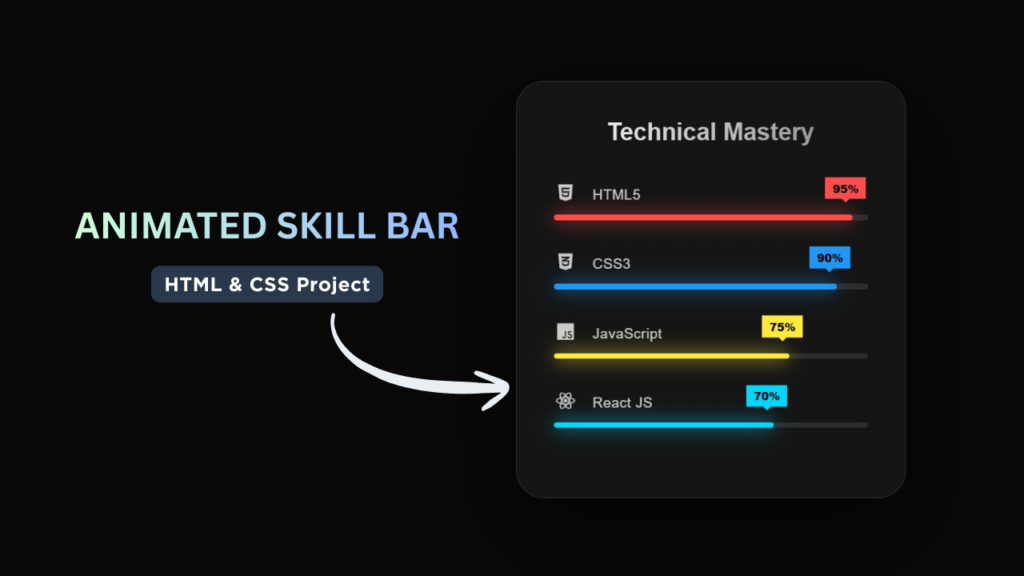
Skill bars are a popular UI component used in portfolio websites to visually represent a person’s skills and proficiency levels. They help users quickly understand expertise in different technologies such as HTML, CSS, JavaScript, and more.
In this tutorial, we will create a Skill Bar using HTML and CSS. This project demonstrates how to design animated progress bars that showcase different skill levels in a clean and modern way.
Skill bars are commonly used in developer portfolios, resumes, and personal websites. They not only improve visual presentation but also enhance user experience by making information easy to understand.
This beginner-friendly project will help you learn how to structure UI components and apply CSS animations to create smooth and interactive designs.
Tools & Resources That Support My Web Development Work
Discover the exact hardware and services I use daily — from laptops and keyboards to hosting and domains.
1. Video Tutorial – Skill Bar Design
If you prefer visual learning, you can follow the complete video tutorial where the Skill Bar is designed step by step using pure HTML and CSS.
In the tutorial, you will learn:
HTML structure for skill sections
CSS styling and animation effects
How to create smooth progress animations
2. Project Overview
The goal of this project is to design a responsive and animated skill bar section that displays different skills along with their progress levels.
Each skill bar represents a percentage value indicating proficiency. For example, HTML may show 90%, CSS 85%, and JavaScript 75%.
The project includes:
- Multiple skill items
- Progress bars with percentage values
- Smooth animation effects
- Clean and modern UI design
The skill bars will fill up with animation when the page loads, making the design more dynamic and engaging.
This project is perfect for showcasing frontend development skills in a professional portfolio.
3. HTML Structure – Skill Section Layout
The HTML structure defines the layout of the skill bar section.
In this section, we create a container that holds multiple skill items. Each skill item includes a label (skill name) and a progress bar.
The structure is designed to be clean and organized, making it easy to style and customize.
Key elements used include:
- Main container for skill section
- Skill name labels
- Progress bar containers
- Inner progress indicator
This structured approach ensures that the design remains scalable and easy to maintain.
					<!DOCTYPE html>
<html lang="en">
<head>
    <meta charset="UTF-8">
    <meta name="viewport" content="width=device-width, initial-scale=1.0">
    <title>Skill Bar | CodeByGaurav</title>
    <link rel="stylesheet" href="style.css">
    <link rel="stylesheet" href="https://cdnjs.cloudflare.com/ajax/libs/font-awesome/7.0.1/css/all.min.css">
</head>
<body>
    <div class="skill-box">
        <div class="title">Technical Mastery</div>

        <div class="bar">
            <div class="info">
                <span><i class="fa-brands fa-html5"></i> HTML5</span>
            </div>
            <div class="track">
                <div class="fill" style="--w:95%; --clr:#ff4d4d; --delay:0.1s;">
                    <span class="tooltip">95%</span>
                </div>
            </div>
        </div>

        <div class="bar">
            <div class="info">
                <span><i class="fa-brands fa-css3-alt"></i> CSS3</span>
            </div>
            <div class="track">
                <div class="fill" style="--w:90%; --clr:#2196f3; --delay:0.3s;">
                    <span class="tooltip">90%</span>
                </div>
            </div>
        </div>

        <div class="bar">
            <div class="info">
                <span><i class="fa-brands fa-js"></i> JavaScript</span>
            </div>
            <div class="track">
                <div class="fill" style="--w:75%; --clr:#ffeb3b; --delay:0.5s;">
                    <span class="tooltip">75%</span>
                </div>
            </div>
        </div>

        <div class="bar">
            <div class="info">
                <span><i class="fa-brands fa-react"></i> React JS</span>
            </div>
            <div class="track">
                <div class="fill" style="--w:70%; --clr:#00d8ff; --delay:0.7s;">
                    <span class="tooltip">70%</span>
                </div>
            </div>
        </div>

    </div>
</body>
</html>
4. CSS Styling – Animated Progress Bars
CSS is used to design the visual appearance of the skill bars and create smooth animations.
We use CSS to control:
- Width and height of progress bars
- Background colors
- Border radius for smooth edges
- Spacing and alignment
- Animation effects
The progress bars are styled in a way that they look clean and modern, making them suitable for professional portfolios.
You can also customize colors and sizes to match your website design.
					:root {
    --bg-color: #080808;
    --card-bg: rgba(255, 255, 255, 0.05);
}

* {
    padding: 0;
    margin: 0;
    box-sizing: border-box;
    font-family: "Poppins", sans-serif;
}

body {
    height: 100vh;
    display: flex;
    justify-content: center;
    align-items: center;
    background: var(--bg-color);
    overflow: hidden;
}

/* main card */
.skill-box {
    width: 420px;
    padding: 40px;
    background: var(--card-bg);
    border-radius: 30px;
    backdrop-filter: blur(20px);
    border: 1px solid rgba(255, 255, 255, 0.1);
    box-shadow: 0 40px 100px rgba(0, 0, 0, 0.5);
    transition:
        transform 0.4s ease,
        border-color 0.4s ease;
}

.skill-box:hover {
    transform: translateY(-10px) rotateX(5deg);
    border-color: rgba(255, 255, 255, 0.2);
}

.title {
    color: #fff;
    font-size: 26px;
    font-weight: 700;
    text-align: center;
    margin-bottom: 40px;
    background: linear-gradient(to right, #fff, #888);
    -webkit-background-clip: text;
    -webkit-text-fill-color: transparent;
}

/* Progress bar */
.bar {
    margin-bottom: 35px;
    position: relative;
}

.info {
    color: #ccc;
    font-size: 15px;
    margin-bottom: 12px;
    display: flex;
    align-items: center;
    letter-spacing: 0.5px;
}

.info i {
    font-size: 20px;
    margin-right: 12px;
}

.track {
    width: 100%;
    height: 6px;
    background: rgba(255, 255, 255, 0.1);
    border-radius: 20px;
    position: relative;
}

.fill {
    height: 100%;
    width: 0;
    background: var(--clr);
    border-radius: 20px;
    position: relative;
    box-shadow: 0 0 20px var(--clr);
    animation: grow 2s cubic-bezier(0.17, 0.67, 0.83, 0.67) forwards;
    animation-delay: var(--delay);
}

/* Tooltip */
.tooltip {
    position: absolute;
    right: -15px;
    top: -35px;
    background: var(--clr);
    color: #000;
    font-size: 12px;
    font-weight: 800;
    padding: 3px 8px;
    opacity: 0;
    animation: fadeIn 0.5s forwards;
    animation-delay: calc(var(--delay) + 1.5s);
}

.tooltip::before {
    content: "";
    position: absolute;
    bottom: -4px;
    left: 50%;
    transform: translateX(-50%);
    border-left: 5px solid transparent;
    border-right: 5px solid transparent;
    border-top: 5px solid var(--clr);
}

@keyframes grow {
    to {
        width: var(--w);
    }
}

@keyframes fadeIn {
    to{
        opacity: 1;
        transform: translateY(-5px);
    }
}
5. Animation Logic
The animation effect is achieved using CSS transitions or keyframes.
When the page loads, the progress bars gradually fill up based on their defined percentage values. This creates a smooth animation that enhances user engagement.
Animation techniques used in this project include:
- Width transition for progress fill
- Smooth timing functions
- Optional delay for each bar
These animations make the UI feel dynamic and modern without using JavaScript.
Understanding CSS animations is an important skill for creating interactive user interfaces.
6. Key Features of This Skill Bar
This Skill Bar project includes several useful features:
- Clean and modern UI design
- Animated progress bars
- Beginner-friendly HTML and CSS
- Fully responsive layout
- Easy to customize
- Lightweight and fast performance
This project is perfect for showcasing your skills in a professional way.
Conclusion
In this tutorial, you learned how to create an Animated Skill Bar using HTML and CSS. This component is perfect for portfolio websites and helps visually represent your expertise.
You can enhance this project by adding:
Hover effects
Dark mode version
Scroll-based animation trigger
Gradient or glassmorphism design
For more HTML & CSS UI projects, follow CodeByGaurav 🚀

Pingback: Build an Age Calculator Using HTML CSS and JavaScript (Beginner Friendly Project) - CodeByGaurav