Introduction :
Modern websites often use visually attractive buttons to improve user interaction and engagement. One popular design trend in UI design is the neon glowing button effect, which creates a bright glowing appearance when users hover over a button.
In this tutorial, we will learn how to create a Glowing Neon Button using HTML and CSS. This project demonstrates how simple CSS properties such as shadows, transitions, and hover effects can be used to create impressive visual effects.
This beginner-friendly project is perfect for developers who want to improve their CSS styling skills and learn how to design modern user interface components. By the end of this tutorial, you will have a glowing neon button that can be used in landing pages, portfolios, and interactive web interfaces.

Tools & Resources That Support My Web Development Work
Discover the exact hardware and services I use daily — from laptops and keyboards to hosting and domains.
Project Overview :
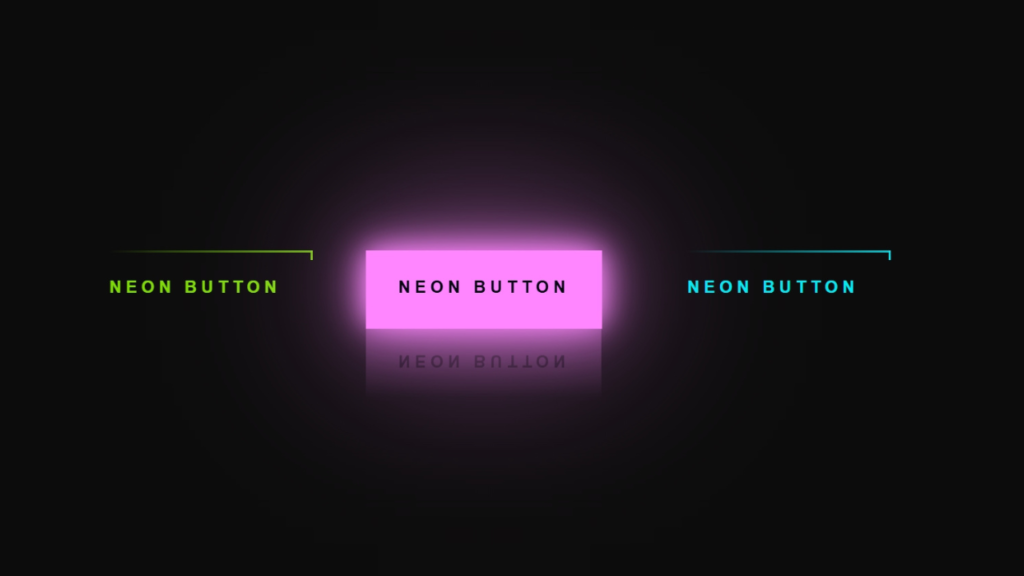
The goal of this project is to design a glowing neon button that lights up when the user hovers over it. Neon-style UI elements are commonly used in modern web design, especially in tech websites, gaming interfaces, and futuristic UI layouts.
In this project, we will build a simple button using HTML and apply glowing effects using CSS.
The project includes the following elements:
A button element created with HTML
Neon glow effect using CSS shadows
Smooth hover animation
Modern UI styling
Responsive design
This project will help you understand how CSS effects can transform simple UI components into visually engaging interactive elements.
Video Tutorial :
You can watch the complete step-by-step video tutorial below to understand how the glowing neon button effect is created using HTML and CSS.
HTML Structure :
The first step is creating the button structure using HTML. HTML provides the base element that will later be styled using CSS.
In this section, we create a container and add a button element inside it. The button will display text such as “Hover Me” or “Click Here”.
The HTML structure is intentionally simple because most of the visual effects will be handled using CSS.
The main elements included are:
A container for alignment
A button element
Button text
This minimal structure makes the project beginner-friendly and easy to integrate into other websites.
					<!doctype html>
<html lang="en">
    <head>
        <meta charset="UTF-8" />
        <meta name="viewport" content="width=device-width, initial-scale=1.0" />
        <title>Glowing Neon button | CodeByGaurav</title>
        <link rel="stylesheet" href="CodeByGaurav.css" />
    </head>
    <body>
        <a href="#">
            <span></span>
            <span></span>
            <span></span>
            <span></span>
            Neon button
        </a>
        <a href="#">
            <span></span>
            <span></span>
            <span></span>
            <span></span>
            Neon button
        </a>
        <a href="#">
            <span></span>
            <span></span>
            <span></span>
            <span></span>
            Neon button
        </a>
    </body>
</html>
CSS Styling :
After creating the HTML structure, we apply CSS styles to create the neon glowing effect.
CSS is used to control the appearance of the button including colors, spacing, borders, and shadows. The neon glow effect is created using box-shadow and text-shadow properties.
We also use CSS transitions so the glowing animation appears smooth when the user hovers over the button.
Key styling techniques used in this project include:
Background color customization
Neon glow using shadow effects
Rounded button edges
Smooth hover animations
Center alignment
These styles combine to create a visually appealing neon button design.
					*{
    padding: 0;
    margin: 0;
    box-sizing: border-box;
    font-family: sans-serif;
}

body{
    display: flex;
    justify-content: center;
    align-items: center;
    height: 100vh;
    background: #0c0c0c;
    font-weight: bold;
}

a{
    position: relative;
    display: inline-block;
    padding: 25px 30px;
    margin: 40px 0;
    color: #03e9f4;
    text-decoration: none;
    text-transform: uppercase;
    transition: 0.5s;
    letter-spacing: 4px;
    overflow: hidden;
    margin-right: 50px;
}

a:hover{
    background: #03e9f4;
    color: #050801;
    box-shadow: 0 05px #03e9f4, 0 0 25px #03e9f4, 0 0 50px #03e9f4, 0 0 200px #03e9f4;
    -webkit-box-reflect: below 1px linear-gradient(transparent, #0005);
}

a:nth-child(1){
    filter: hue-rotate(270deg);
}

a:nth-child(2){
    filter: hue-rotate(110deg);
}

a span{
    position: absolute;
    display: block;

}

a span:nth-child(1){
    top: 0;
    left: 0;
    width: 100%;
    height: 2px;
    background: linear-gradient(90deg, transparent, #03e9f4);
    animation: animate1 1s linear infinite;
}

@keyframes animate1{
    0%{
        left: -100%;
    }
    50%, 100%{
        left: 100%;
    }
}

a span:nth-child(2){
    top: -100%;
    right: 0;
    width: 2px;
    height: 100%;
    background: linear-gradient(180deg, transparent, #03e9f4);
    animation: animate2 1s linear infinite;
    animation-delay: 0.25s;
}

@keyframes animate2{
    0%{
        top: -100%;
    }
    50%, 100%{
        top: 100%;
    }
}

a span:nth-child(3){
    bottom: 0;
    right: 0;
    width: 100%;
    height: 2px;
    background: linear-gradient(270deg, transparent, #03e9f4);
    animation: animate3 1s linear infinite;
    animation-delay: 0.50s;
}

@keyframes animate3{
    0%{
        right: -100%;
    }

    50%, 100%{
        right: 100%;
    }
}
a span:nth-child(4){
    bottom: -100%;
    left: 0;
    width: 2px;
    height: 100%;
    background: linear-gradient(360deg, transparent, #03e9f4);
    animation: animate4 1s linear infinite;
    animation-delay: 0.75s;
}

@keyframes animate4{
    0%{
        bottom: -100%;
    }
    50%, 100%{
        bottom: 100%;
    }
}
Hover Effect Logic :
The glowing animation is applied using the CSS :hover pseudo-class. When the user moves the mouse cursor over the button, additional styles are activated.
The hover effect may include:
Increased glow intensity
Color transition
Shadow expansion
Smooth animation effect
These small visual changes make the button feel interactive and modern. Hover effects are widely used in buttons, navigation menus, cards, and interactive UI elements.
You Might Also Like :
If you enjoyed building this project, you may also like these frontend development tutorials:
These projects will help you practice real-world UI components using HTML, CSS, and JavaScript.
Features of This Project :
This Glowing Neon Button project includes several useful features:
Modern neon UI design
Smooth hover glow animation
Beginner-friendly HTML and CSS code
Lightweight and fast loading
Easy to integrate into any website
Responsive and customizable
This project is ideal for practicing CSS hover effects and UI styling techniques.
Conclusion :
In this tutorial, we created a Glowing Neon Button using HTML and CSS. This project demonstrated how simple CSS properties such as shadows, transitions, and hover effects can be used to create modern and interactive UI elements.
Neon effects are popular in modern web design and can be used in landing pages, portfolio websites, and call-to-action buttons. You can easily customize this project by changing the glow color, animation speed, or button size.
Practicing small UI projects like this is a great way to improve your frontend development skills and build a strong web design portfolio.