
Beginner Friendly Task Manager Project
Managing daily tasks efficiently is important for staying productive. A to-do list is one of the simplest and most effective tools used to organize tasks, set priorities, and track progress.
In this tutorial, we will build a Simple To-Do List using HTML, CSS, and JavaScript. This web application allows users to add, delete, and manage their daily tasks in an interactive way.
This project is perfect for beginners because it demonstrates how JavaScript can be used to create dynamic web applications. You will learn how to handle user input, manipulate the DOM, and update content in real time.
By the end of this tutorial, you will have a functional to-do list that can be used in real-life scenarios such as daily planning, study schedules, or project management.

Tools & Resources That Support My Web Development Work
Discover the exact hardware and services I use daily — from laptops and keyboards to hosting and domains.
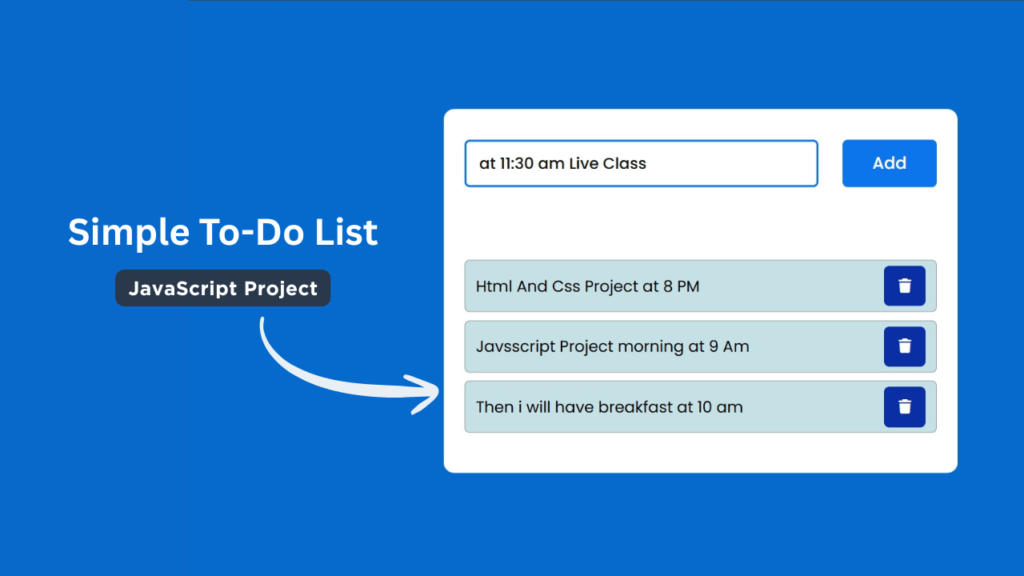
Project Overview :
The goal of this project is to create a simple and user-friendly task management system.
The to-do list application will allow users to:
- Add new tasks
- Delete tasks
- Mark tasks as completed
- View tasks in a structured list
This project demonstrates how HTML, CSS, and JavaScript work together to create interactive web applications.
HTML is used to structure the layout, CSS is used to design the interface, and JavaScript is used to add functionality such as adding and removing tasks.
This is a practical project that reflects real-world usage and helps beginners understand core frontend development concepts.
1. Video Tutorial – Simple To-Do List
If you prefer learning visually, you can follow the complete video tutorial where the To-Do List is built step by step using HTML, CSS, and JavaScript.
In the tutorial, you will learn:
Creating the task input layout
Styling the app using CSS
Writing JavaScript to manage tasks
Adding delete and complete functionality
2. HTML Structure – To-Do List Layout
The HTML structure includes:
Main container
Input field for adding new tasks
Add button
Task list section
The layout is kept simple and clean to focus on functionality.
👇 Place your complete HTML code below this section.
					<!doctype html>
<html lang="en">
    <head>
        <meta charset="UTF-8" />
        <meta name="viewport" content="width=device-width, initial-scale=1.0" />
        <title>Simple To-Do List | CodeByGaurav</title>
        <link rel="stylesheet" href="CodeByGaurav.css" />
        <link
            rel="stylesheet"
            href="https://cdnjs.cloudflare.com/ajax/libs/font-awesome/7.0.1/css/all.min.css"
        />
    </head>
    <body>
        <div class="container">
            <div id="newTask">
                <input type="text" placeholder="Task to be done.." />
                <button class="push">Add</button>
            </div>
            <div id="tasks">
                <!-- <div class="task">
                <span id="taskname">
                    html task
                </span>
                <button class="delete"><i class="fa-solid fa-trash"></i></button>
            </div> -->
            </div>
        </div>
    </body>
    <script src="script.js"></script>
</html>
3. CSS Styling – Clean and Minimal UI
CSS is used to:
Design the task container
Style buttons and input fields
Add hover effects
Create spacing and alignment
Make the layout responsive
A clean UI makes the app easy to use and visually appealing.
👇 Add your complete CSS code below this section.
					* {
    padding: 0;
    margin: 0;
    box-sizing: border-box;
    font-family: "Poppins", sans-serif;
}

body{
    height: 100vh;
    background: #066acd;
}

.container{
    width: 40%;
    min-width: 450px;
    position: absolute;
    transform: translate(-50%, -50%);
    top: 50%;
    left: 50%;
    background: #fff;
    border-radius: 10px;
}

#newTask{
    position: relative;
    padding: 30px 20px;
}

#newTask input{
    width: 75%;
    height: 45px;
    font-size: 15px;
    border: 2px solid #d1d3d4;
    padding: 12px;
    color: #111;
    font-weight: 500;
    position: relative;
    border-radius: 5px;
}

#newTask input:focus{
    outline: none;
    border-color: #0d75ec;
}

#newTask button{
    position: relative;
    float: right;
    width: 20%;
    height: 45px;
    border-radius: 5px;
    font-weight: 500;
    font-size: 16px;
    background: #0d75ec;
    border: none;
    color: #fff;
    cursor: pointer;
    outline: none;
}

#tasks{
    background: #fff;
    padding: 30px 20px;
    margin-top: 10px;
    border-radius: 10px;
    width: 100%;
    position: relative;
}

.task{
    background: #c5e1e6;
    height: 50px;
    margin-bottom: 8px;
    padding: 5px 10px;
    display: flex;
    align-items: center;
    justify-content: space-between;
    border: 1px solid #939697;
    cursor: pointer;
    border-radius: 5px;
}
.task span{
    font-size: 15px;
    font-weight: 400;
}

.task button{
    background: #0a2ea4;
    color: #fff;
    height: 100%;
    width: 40px;
    border-radius: 5px;
    border: none;
    cursor: pointer;
    outline: none;

}

.completed{
    text-decoration: line-through;
}
4. JavaScript Logic – Making It Functional
JavaScript is the core part of this project, as it handles all the functionality of the to-do list.
The logic works as follows:
- Capture the user input when a task is entered.
- Add the task to the list dynamically.
- Allow users to mark tasks as completed.
- Provide an option to delete tasks.
- Update the task list in real time without refreshing the page.
JavaScript interacts with the DOM to create, update, and remove elements dynamically. This helps build an interactive and responsive application.
You can also enhance the project by adding features such as saving tasks in local storage so that tasks remain even after refreshing the page.
					document.querySelector(".push").addEventListener("click", () => {

    if (document.querySelector("#newTask input").value.length == 0) {
        alert("Please Enter a Task")
    } else {

        document.querySelector("#tasks").innerHTML += `
        <div class="task">
                <span id="taskname">
                   ${document.querySelector("#newTask input").value.trim()}
                </span>
                <button class="delete"><i class="fa-solid fa-trash"></i></button>
            </div>
        `;

        let cTask = document.querySelectorAll(".delete");
        for(var i = 0; i < cTask.length; i++){
            cTask[i].onclick = function(){
                this.parentNode.remove();
            }
        }

        document.querySelector("#newTask input").value = "";

    }

})
5. Key Features of This Project
Add and delete tasks
Mark tasks as completed
Beginner-friendly code
Clean and modern UI
Fully responsive design
Conclusion
In this tutorial, you learned how to build a Simple To-Do List using HTML, CSS, and JavaScript. This project is perfect for beginners who want to strengthen their JavaScript basics and build interactive web applications.
Creating small but functional projects like this helps you gain confidence in frontend development and improves your portfolio quality.
Keep building and experimenting with new features 🚀

Pingback: Build an Age Calculator Using HTML CSS and JavaScript (Beginner Friendly Project) - CodeByGaurav
Pingback: Responsive Footer Design using HTML & CSS (Beginner Friendly Tutorial) - CodeByGaurav