
Introduction :
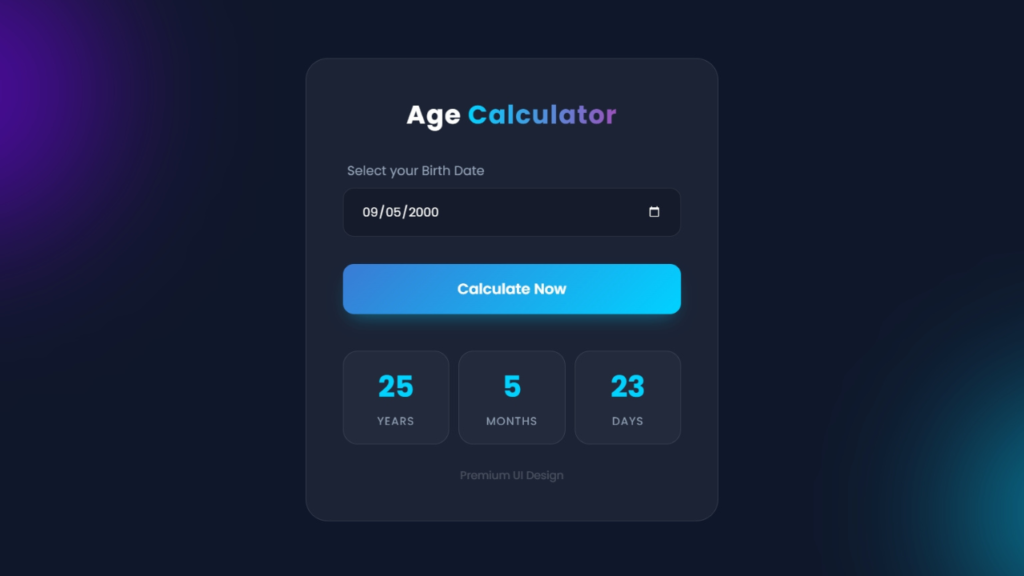
In this tutorial, we will build a simple and practical Age Calculator using HTML, CSS, and JavaScript. This project allows users to enter their date of birth and instantly calculate their exact age in years, months, and days.
Age calculators are very useful in many real-world applications such as online forms, registration systems, and profile pages. This project is also a great way for beginners to learn how JavaScript works with dates, user input, and dynamic calculations.
By the end of this tutorial, you will understand how to structure a web page using HTML, design a clean interface using CSS, and implement age calculation logic using JavaScript.

Tools & Resources That Support My Web Development Work
Discover the exact hardware and services I use daily — from laptops and keyboards to hosting and domains.
Project Overview :
The Age Calculator is a small web application where users can select their date of birth from an input field. Once the user clicks the calculate button, JavaScript will process the date and determine the user’s current age.
This project demonstrates how JavaScript can interact with HTML elements and perform real-time calculations.
Key concepts used in this project include:
HTML form input
CSS styling for user interface
JavaScript Date object
Event handling
Dynamic result display
The final result will be a clean and responsive age calculator that instantly shows the user’s age.
Video Tutorial :
Below is the complete video tutorial for this project. You can watch the video to understand the full development process step by step.
HTML Structure :
The first step is to create the structure of our age calculator using HTML.
In this section, we will create:
A main container for the calculator
A heading for the project title
A date input field where users can select their date of birth
A button to calculate the age
A result area to display the calculated age
HTML provides the basic layout and structure of the web application. Once the structure is ready, we can style it using CSS and add functionality using JavaScript.
					<!DOCTYPE html>
<html lang="en">
<head>
    <meta charset="UTF-8">
    <meta name="viewport" content="width=device-width, initial-scale=1.0">
    <title>Age Calculator | CodeByGaurav</title>
    <link rel="stylesheet" href="style.css">
</head>
<body>
    <div class="circle c1"></div>
    <div class="circle c2"></div>

    <div class="container">
        <h1>Age <span>Calculator</span></h1>

        <div class="input-group">
            <label for="date-input">Select your Birth Date</label>
            <input type="date" id="date-input">
        </div>

        <button id="calculateBtn">Calculate Now</button>

        <div class="result-box">
            <div class="result-card">
                <span id="years" class="number">--</span>
                <span class="label">Years</span>
            </div>
            <div class="result-card">
                <span id="months" class="number">--</span>
                <span class="label">Months</span>
            </div>
            <div class="result-card">
                <span id="days" class="number">--</span>
                <span class="label">Days</span>
            </div>
        </div>

        <div class="footer-text">Premium UI Design</div>

    </div>
</body>
<script src="script.js"></script>
</html>
CSS Styling :
After creating the HTML layout, the next step is to style the age calculator using CSS.
CSS helps us improve the visual appearance of the project by adding colors, spacing, alignment, and responsive design. In this project, we style the container, input field, and button to create a clean and modern user interface.
Some common CSS techniques used in this project include:
Centering the calculator on the page
Adding padding and spacing
Styling buttons with hover effects
Creating a clean background design
Making the layout responsive for different screen sizes
These styles make the calculator visually appealing and improve the user experience.
					* {
    padding: 0;
    margin: 0;
    box-sizing: border-box;
    font-family: "Poppins", sans-serif;
}

body {
    background: var(--bg-dark);
    display: flex;
    justify-content: center;
    align-items: center;
    height: 100vh;
    overflow: hidden;
    position: relative;
}

.circle {
    position: absolute;
    border-radius: 50%;
    filter: blur(80px);
    z-index: -1;
    opacity: 0.6;
}

.c1 {
    width: 300px;
    height: 300px;
    background: #7f00ff;
    top: -50px;
    left: -50px;
}

.c2 {
    width: 250px;
    height: 250px;
    background: #00d2ff;
    bottom: -50px;
    right: -50px;
}

.container {
    width: 100%;
    max-width: 450px;
    background: var(--glass-bg);
    backdrop-filter: blur(16px);
    -webkit-backdrop-filter: blur(16px);
    border: 1px solid var(--glass-border);
    border-radius: 24px;
    padding: 40px;
    box-shadow: 0 25px -12px rgba(0, 0, 0, 0.5);
    text-align: center;
    margin: 20px;
}

h1 {
    color: var(--text-color);
    font-size: 28px;
    font-weight: 700;
    margin-bottom: 30px;
    letter-spacing: 1px;
}

h1 span {
    background: linear-gradient(to right, var(--primary-color), #9d50bb);
    -webkit-background-clip: text;
    -webkit-text-fill-color: transparent;
}

.input-group {
    margin-bottom: 30px;
    text-align: left;
}

label {
    display: block;
    color: var(--text-muted);
    font-size: 14px;
    margin-bottom: 8px;
    margin-left: 5px;
}

input[type="date"] {
    width: 100%;
    padding: 15px 20px;
    border-radius: 12px;
    border: 1px solid var(--glass-border);
    background: rgba(0, 0, 0, 0.2);
    color: #fff;
    font-style: 16px;
    outline: none;
    transition: 0.3s;
    color-scheme: dark;
}

input[type="date"]:focus {
    border-color: var(--primary-color);
    box-shadow: 0 0 15px rgba(0, 210, 255, 0.2);
}

button {
    width: 100%;
    padding: 15px;
    border: none;
    border-radius: 12px;
    background: linear-gradient(
        135deg,
        var(--secondary-color),
        var(--primary-color)
    );
    color: #fff;
    font-size: 16px;
    font-weight: 600;
    cursor: pointer;
    transition:
        transform 0.2s,
        box-shadow 0.2s;
    box-shadow: 0 10px 20px -10px rgba(0, 210, 255, 0.5);
}

button:hover {
    transform: translateY(-2px);
    box-shadow: 0 15px 25px -10px rgba(0, 210, 255, 0.6);
}

button:active {
    transform: translateY(0);
}

.result-box {
    display: flex;
    justify-content: space-between;
    margin-top: 40px;
    gap: 10px;
}

.result-card {
    background: rgba(255, 255, 255, 0.03);
    border: 1px solid var(--glass-border);
    padding: 15px 10px;
    border-radius: 16px;
    flex: 1;
    display: flex;
    flex-direction: column;
    align-items: center;
}
.result-card span {
    display: block;
}

.number {
    font-size: 32px;
    font-weight: 700;
    color: var(--primary-color);
    margin-bottom: 5px;
}

.label {
    font-size: 12px;
    color: var(--text-muted);
    text-transform: uppercase;
    letter-spacing: 1px;
}

.footer-text {
    margin-top: 25px;
    font-size: 12px;
    color: rgba(255, 255, 255, 0.2);
}
JavaScript Logic :
The most important part of this project is the JavaScript logic that calculates the user’s age.
JavaScript allows us to read the date entered by the user and compare it with the current date. Using the Date object, we can determine the difference between the two dates and calculate the age.
The process works as follows:
Get the user’s birth date from the input field.
Get the current date using JavaScript.
Calculate the difference between the two dates.
Convert the result into years, months, and days.
Display the calculated age on the screen.
This logic demonstrates how JavaScript can perform real-time calculations and update the webpage dynamically.
					const dateInput = document.getElementById("date-input");
const calculateBtn = document.getElementById("calculateBtn");
const years = document.getElementById("years");
const months = document.getElementById("months");
const days = document.getElementById("days");


const calculateAge = (dob)=>{

    let currentDate = new Date();
    let userDob = new Date(dob);

    let year = currentDate.getFullYear() - userDob.getFullYear();
    let month = currentDate.getMonth() - userDob.getMonth();
    let day = currentDate.getDate() - userDob.getDate();

    if(day < 0){
        month--;
        day += new Date(currentDate.getFullYear(), currentDate.getMonth(), 0).getDate();
    }

    if(month < 0){
        year--;
        month += 12;
    }

    years.innerText = year;
    months.innerText = month;
    days.innerText = day;

}

calculateBtn.addEventListener("click", ()=>{
    let inpDate = dateInput.value;
    if(!inpDate){
        alert("Please select a date first!")
        return
    }

    calculateAge(inpDate)
})
Features of This Project :
This Age Calculator project includes several useful features:
Simple and beginner-friendly project
Calculates age instantly
Clean and modern user interface
Responsive design for mobile and desktop
Uses JavaScript Date object
Real-time result display
This project is perfect for beginners who want to practice JavaScript logic and DOM manipulation.
Conclusion :
In this tutorial, we created a fully functional Age Calculator using HTML, CSS, and JavaScript. This project helped us understand how to structure a web page, design a user interface, and implement dynamic functionality using JavaScript.
Projects like this are excellent for improving your frontend development skills and building real-world applications. You can further enhance this project by adding additional features such as age in months, countdown to the next birthday, or animated UI elements.
If you want to learn more practical web development projects like this, make sure to explore other tutorials on this website.


Pingback: Responsive Footer Design using HTML & CSS (Beginner Friendly Tutorial) - CodeByGaurav
Pingback: Social Icons with Hover Effects Using HTML & CSS - CodeByGaurav
Pingback: Glowing Neon Button using HTML & CSS - CodeByGaurav