
Create Social Icons with Hover Effects using HTML & CSS
Social media icons are commonly used on websites to connect visitors with social platforms such as Facebook, Instagram, Twitter, and YouTube. These icons usually appear in headers, footers, or contact sections and help users quickly navigate to social profiles.
In this tutorial, we will learn how to create stylish social media icons with hover effects using HTML and CSS. Hover effects make icons interactive and visually engaging, improving the overall user experience of a website.
This beginner-friendly project will help you understand how to design modern UI elements using CSS transitions, hover animations, and simple layout techniques. By the end of this tutorial, you will have a clean and responsive set of social icons that you can use in your own web development projects.

Tools & Resources That Support My Web Development Work
Discover the exact hardware and services I use daily — from laptops and keyboards to hosting and domains.
Project Overview :
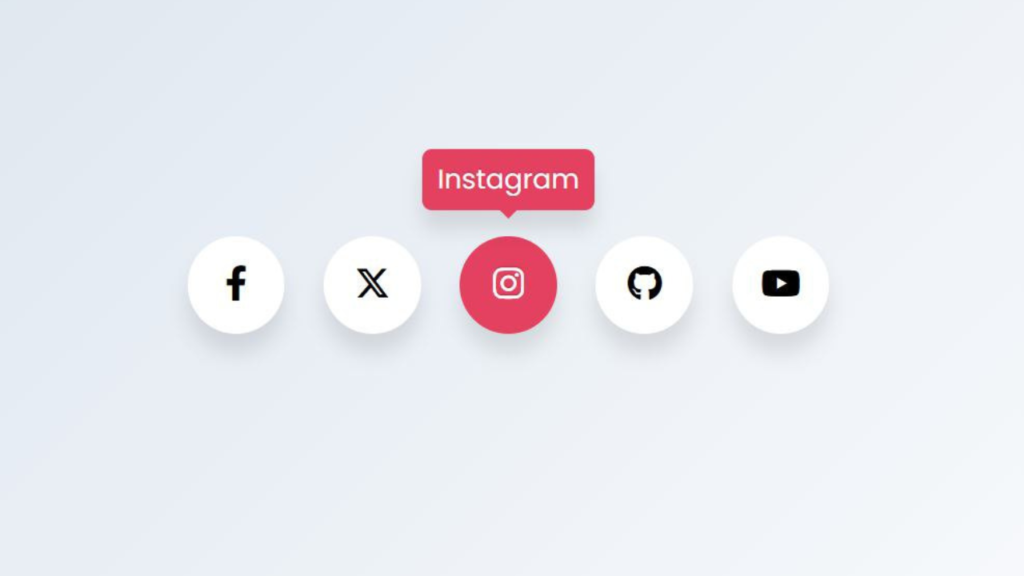
The goal of this project is to design a row of social media icons that respond visually when a user hovers over them. Hover effects are commonly used in modern websites to make interfaces feel more interactive and polished.
In this project, we will create a simple layout that contains several social media icons. When the user moves the cursor over an icon, the icon will animate or change appearance using CSS hover effects.
This project demonstrates important frontend concepts such as:
Icon layout using HTML
Styling and alignment using CSS
Hover animations with CSS transitions
Interactive UI design techniques
These concepts are widely used in portfolio websites, landing pages, blogs, and business websites.
1. Video Tutorial – Social Icons with Hover Effects
If you prefer learning step by step visually, you can watch the complete video tutorial where the project is built from scratch using HTML and CSS.
In the tutorial, you will learn:
How to create the social icons layout
How to align icons perfectly using Flexbox
How to design circular modern UI icons
How to add smooth hover animations
How to apply brand color transitions
How to create floating and shadow effects
The video explains each part clearly so beginners can easily follow along.
👇 Watch the complete video below and build the project step by step.
2. HTML Structuring for Social Icons Layout
The first step in this project is creating a clean and simple HTML structure.
We use a main container to hold all social icons. Each icon is wrapped inside a clickable element so users can navigate to social media profiles easily.
The structure focuses on:
Clean and readable markup
Proper grouping of elements
Easy scalability if more icons are added later
Simple class naming for styling
This makes the layout organized and beginner-friendly.
Now you can display the HTML source code below for reference.👇
					<!doctype html>
<html lang="en">
    <head>
        <meta charset="UTF-8" />
        <meta name="viewport" content="width=device-width, initial-scale=1.0" />
        <title>Social icons with Hover effects | CodeByGaurav</title>
        <link rel="stylesheet" href="style.css" />
        <link
            rel="stylesheet"
            href="https://cdnjs.cloudflare.com/ajax/libs/font-awesome/7.0.1/css/all.min.css"
        />
    </head>
    <body>
        <ul class="wrapper">
            <li class="icon facebook">
                <span class="tooltip">Facebook</span>
                <span><i class="fa-brands fa-facebook-f"></i></span>
            </li>
            <li class="icon twitter">
                <span class="tooltip">Twitter</span>
                <span><i class="fa-brands fa-twitter"></i></span>
            </li>
            <li class="icon instgram">
                <span class="tooltip">Instgram</span>
                <span><i class="fa-brands fa-instagram"></i></span>
            </li>
            <li class="icon github">
                <span class="tooltip">Github</span>
                <span><i class="fa-brands fa-github"></i></span>
            </li>
            <li class="icon youtube">
                <span class="tooltip">Youtube</span>
                <span><i class="fa-brands fa-youtube"></i></span>
            </li>
        </ul>
    </body>
</html>
3. CSS Styling – Creating Smooth Hover Animations Using Pure CSS Effects
After structuring the layout, the next step is designing and adding hover animations using CSS.
We use modern CSS techniques to create a smooth and interactive effect. The styling includes circular shapes, centered alignment, background colors, and transition properties for smooth animation.
When a user hovers over an icon:
The icon slightly moves upward
A shadow appears to create depth
The background changes to the brand color
The transition effect makes everything smooth
These small micro-interactions make the UI feel modern and professional.
Now you can show the complete CSS source code below.👇
					@import url("https://fonts.googleapis.com/css2?family=Poppins:ital,wght@0,100;0,200;0,300;0,400;0,500;0,600;0,700;0,800;0,900;1,100;1,200;1,300;1,400;1,500;1,600;1,700;1,800;1,900&display=swap");

* {
    padding: 0;
    margin: 0;
    box-sizing: border-box;
    font-family: "Poppins", sans-serif;
}

*:focus,
*:active {
    outline: none !important;
    -webkit-tap-highlight-color: transparent;
}

html,
body {
    display: flex;
    justify-content: center;
    align-items: center;
    min-height: 100vh;
    min-width: 100vw;
    margin: 0;
    background: linear-gradient(315deg, #ffffff, #d7e1ec);
}

.wrapper {
    display: inline-flex;
    list-style: none;
    padding: 0;
}

.wrapper .icon {
    position: relative;
    background: #fff;
    border-radius: 50%;
    padding: 15px;
    margin: 10px;
    width: 50px;
    height: 50px;
    font-size: 18px;
    display: flex;
    justify-content: center;
    align-items: center;
    flex-direction: column;
    box-shadow: 0 10px 10px rgba(0, 0, 0, 0.1);
    cursor: pointer;
    transition: all 0.2s cubic-bezier(0.68, -0.55, 0.265, 1.55);
}

.wrapper .tooltip {
    position: absolute;
    top: 0;
    font-size: 14px;
    background: #fff;
    padding: 5px 8px;
    border-radius: 5px;
    box-shadow: 0 10px 10px rgba(0, 0, 0, 0.1);
    opacity: 0;
    pointer-events: none;
    transition: all 0.3s cubic-bezier(0.68, -0.55, 0.265, 1.55);
}

.wrapper .tooltip::before {
    position: absolute;
    content: "";
    height: 8px;
    width: 8px;
    background: #fff;
    bottom: -3px;
    left: 50%;
    transform: translate(-50%) rotate(45deg);
    transition: all 0.3s cubic-bezier(0.68, -0.55, 0.265, 1.55);
}

.wrapper .icon:hover .tooltip {
    top: -45px;
    opacity: 1;
    visibility: visible;
    pointer-events: auto;
}

.wrapper .icon:hover span,
.wrapper .icon:hover .tooltip {
    text-shadow: 0px -1px 0px rgba(0, 0, 0, 0.1);
}

.wrapper .facebook:hover,
.wrapper .facebook:hover .tooltip,
.wrapper .facebook:hover .tooltip::before {
    background: #1877f2;
    color: #fff;
}

.wrapper .twitter:hover,
.wrapper .twitter:hover .tooltip,
.wrapper .twitter:hover .tooltip::before {
    background: #222222;
    color: #fff;
}

.wrapper .instgram:hover,
.wrapper .instgram:hover .tooltip,
.wrapper .instgram:hover .tooltip::before {
    background: #e4405f;
    color: #fff;
}

.wrapper .github:hover,
.wrapper .github:hover .tooltip,
.wrapper .github:hover .tooltip::before {
    background: #833ab4;
    color: #fff;
}

.wrapper .youtube:hover,
.wrapper .youtube:hover .tooltip,
.wrapper .youtube:hover .tooltip::before {
    background: #cd201f;
    color: #fff;
}
You Might Also Like :
If you enjoyed this project, you may also like these frontend UI tutorials:
- Responsive Footer Design using HTML & CSS (Beginner Friendly Tutorial)
Build an Age Calculator Using HTML CSS and JavaScript (Beginner Friendly Project)
Practicing these projects will help you improve your HTML, CSS, and frontend design skills.
4. Key Features of This Project
Clean and modern UI design
Smooth hover animation
Floating transform effect
Brand color transition on hover
Responsive layout using Flexbox
Beginner-friendly structure
Lightweight and fast loading
Conclusion
Social Icons with Hover Effects may seem like a small UI element, but they significantly improve the look and feel of a website. By building this project, you learn how to combine layout design with animation to create interactive components.
This beginner-friendly project strengthens your understanding of CSS transitions, transforms, and UI enhancement techniques.
Practice it, customize it, and add it to your portfolio to showcase your frontend creativity.



Pingback: Build an Age Calculator Using HTML CSS and JavaScript (Beginner Friendly Project) - CodeByGaurav
Pingback: Responsive Footer Design using HTML & CSS (Beginner Friendly Tutorial) - CodeByGaurav